


Duplicate Invoice Warning – How to Resolve It

Apr 10, 2026
 0
0
Duplicate Invoice Warning – How to Resolve It
If an invoice or credit note appears in your Alerts section with a warning that the number already exists, it means the system has identified another document with the same reference number.
Solution
Update the invoice or credit note number to make it unique, or delete the duplicate document from your account.
Steps to Resolve a Duplicate Invoice Alert
- Go to the Alerts Page
Navigate to the Alerts section and click on Document Issues where the duplicate warning is displayed. - Open the Existing Document for Comparison
Find the alert for the invoice or credit note with the duplicate warning.
Hold down CTRL (or Command on Mac) and click the ‘View’ link in the error message. This will open the existing document (the one already stored in your account) in a new browser tab.
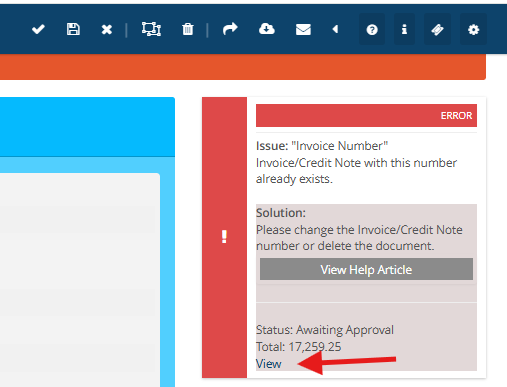
- Compare Both Documents
- Review both versions — the one from the alert and the one that was already saved.
- Determine whether they are identical or contain different information.
- Take Action Based on the Comparison
- If they are the same:
The document in Alerts is a duplicate. Return to the Alerts tab and delete that document to clear the error. - If they are different:
Go back to the Alerts tab, open the document, change the invoice or credit note number to a unique value, and click Save to update. - If Both the Duplicate and Original documents are in Document Issues, you will need to Delete one of these documents and then, once the duplicate has been removed, Click 'Save' on the document you wish to keep to move it on.
- If they are the same:
- Need More Help?
If you're not sure why the documents are flagged or need clarification, it’s a good idea to contact your supplier to confirm whether both documents should exist. - Take Note:
- Pay attention to the invoice number of these duplicate invoices - it may be that the Invoice Number has not been captured correctly on the template and this may cause a 'false positive' with this error.

