


Creating Approver User Groups in SmartOffice

Apr 10, 2026
 0
0
Creating Approver User Groups in SmartOffice, a Step-by-Step Guide
Note: Only users with admin access can create and edit User Groups.
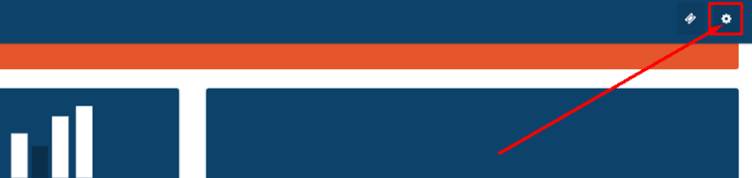
1. Open the Settings Panel
From any page within SmartOffice, click the settings cog icon located in the top-right corner of the screen.
2. Go to Company Settings
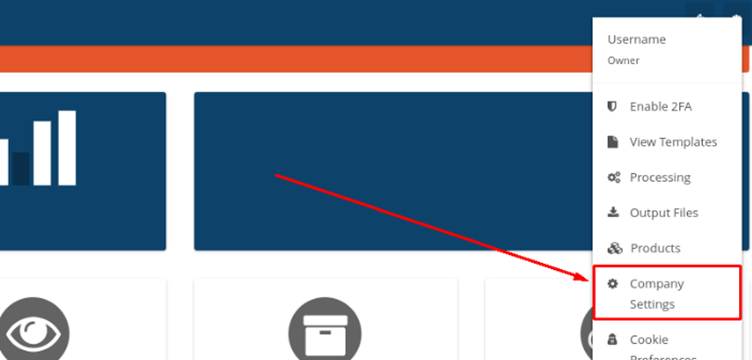
From the dropdown list that appears, select ‘Company Settings’.
3. Navigate to User Groups
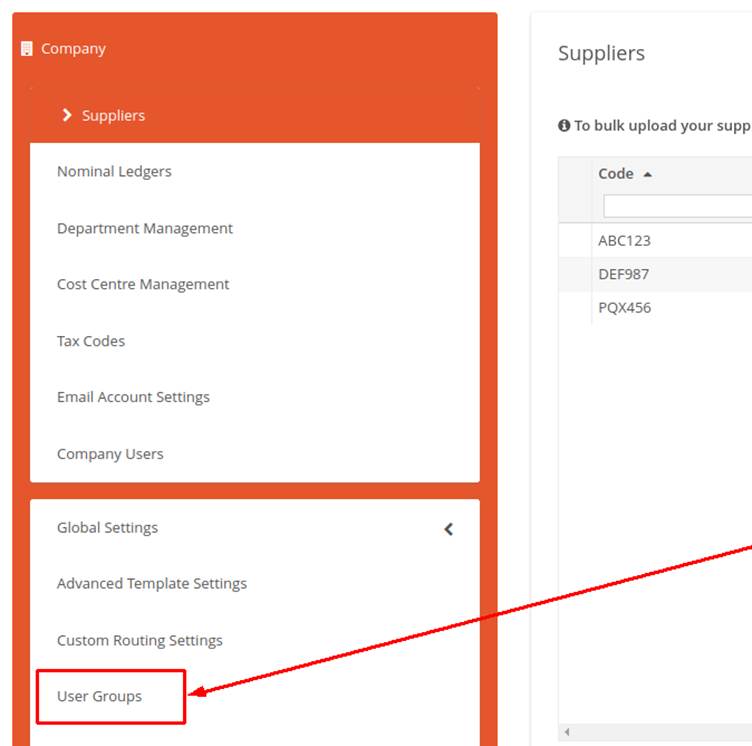
In the left-hand menu under Global Settings, click on ‘User Groups’.
Click on 'Create User Group'

From here, Name the User Group and add users
Approver Configuration Note
- You can assign a User Group as approvers in the Supplier Settings.
- If individual users are also added as approvers separately (outside the User Group), they will still receive approval requests in addition to the group members.

